
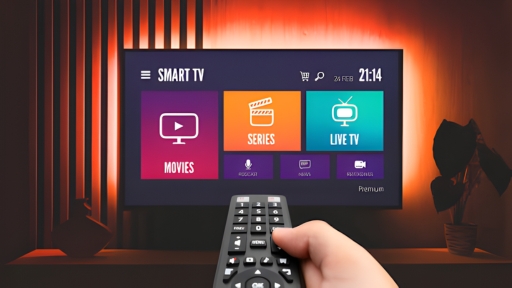
If you’ve got a Firestick and you’re trying to get IPTV Smarters Pro running in 2026, you’re not doing anything unusual. A lot of people just want one clean app on the TV: open it, sign in once, and your playlists are there.
The main reason this guide exists is that IPTV Smarters Pro is not available in the Amazon Appstore like the largest streaming apps.
That means instead of a standard install, you need to use the Downloader app and enable a Firestick setting that allows apps from outside the store.
One thing to clear up first (because it confuses many people): IPTV Smarters Pro doesn’t come with channels. It’s a player. You install it, then you add your own login details from your IPTV service — usually through Xtream Codes or an M3U URL — and that’s what pulls in your live TV and VOD.
The steps are the same in the USA, UK, and Canada. Fire OS doesn’t change based on country.
Things you need before starting the installation
You need to sort two things before starting. This isn’t the fun part, but it prevents the usual problems — failed installs, random lag, and having to redo steps.
1) Enough free space on your Firestick
Firesticks have limited storage. When it’s nearly full, installs may fail, apps can close unexpectedly, and the home screen slows down. Remove a few apps you don’t use, and delete old installer files left over from past sideloads.
2) The Downloader app
Downloader is what most people use for sideloading. Grab it from the Amazon Appstore first, then use it to download and run the IPTV Smarters Pro installer.
Enable Install Unknown Apps on Firestick
This setting is what makes sideloading work. Without it, the download will succeed but the install will be blocked.
- Go to Settings
- Select My Fire TV
- Open Developer Options
- Choose Install Unknown Apps
- Turn Downloader on
If you don’t see Developer Options
This happens on some Fire OS versions — it’s usually just hidden. Follow these steps:
- Go to Settings → My Fire TV → About.
- Highlight your device name.
- Press OK a few times until you see a message that Developer Options is enabled.
- Go back, and the menu will appear.
Install IPTV Smarters Pro with Downloader (2026)
Once Downloader is set up, the rest is a quick download → install → cleanup. Take it step by step.
Step 1: Open Downloader
Launch Downloader and click into the URL/search bar so the keyboard opens.
Step 2: Enter your link or code
Type the download link or short code from a trusted source, then press Go.
Step 3: Download IPTV Smarters Pro
When the download page loads:
- Find IPTV Smarters Pro
- Click Download
- Let it finish completely.
Step 4: Install
When the install screen appears:
- Click Install
- When it’s done, click Done or Open.
Step 5: Delete the installer file
After installation, Firestick usually prompts you to delete the file:
- Click Delete
- Confirm Delete again
You’re not deleting the app — you’re deleting the installer file you no longer need. On a Firestick with limited storage, this matters every time.
Find IPTV Smarters Pro After Installing
If it doesn’t appear on your home row right away, it’s in your app list.
- Hold Home
- Select Apps
- Scroll until you find IPTV Smarters Pro
Move it to the front (optional)
Highlight the app → press Options (three lines) → Move → place it near the front.
Set Up IPTV Smarters Pro on Firestick
Once installed, open the app and run through the first-time setup. It only takes a minute.
Choose the layout
When prompted, pick TV and save. That layout is built for remote navigation and works better on a Firestick.
Accept the message
You’ll see a notice saying the app doesn’t provide playlists or channels. Accept it and continue — that’s normal on first launch.
Xtream Codes vs M3U (Quick Choice)
Just match it to what your provider gave you — don’t overthink it.
Use Xtream Codes (recommended)
If you have a server URL, username, and password: choose Xtream Codes API, enter the details, then click Add User. On a Firestick, Xtream is easier because you’re filling in short fields rather than typing a long URL with a remote.
Use M3U URL
If your provider gave you a single playlist link, choose M3U URL and enter it exactly. It works fine — just slower to type with a remote, and one wrong character will break it.
Common Problems (and Quick Fixes)
These are the issues that come up most on Firestick. The fixes are usually straightforward.
Install fails
Most install failures come down to two things: Downloader isn’t enabled under Install Unknown Apps, or the Firestick is low on storage. Re-check the permission, free up space, restart the Firestick, and try again.
App opens but shows nothing
That’s normal until you add your Xtream or M3U details. IPTV Smarters Pro won’t show channels by itself — it doesn’t include content.
Buffering
Buffering is usually Wi-Fi, peak-time server traffic, or the service itself — not the player. Quick fixes: restart your router and Firestick, switch to 5GHz Wi-Fi if available, and keep Firestick storage free.
Final Thoughts
Installing IPTV Smarters Pro on Firestick in 2026 takes about five minutes once you know the steps. Enable unknown app installs, use Downloader to grab the APK, delete the installer file after, then connect with your Xtream Codes or M3U details. Your channels and VOD load straight away.
If you still need an IPTV service to pair it with, Beast IPTV 4K gives you 40,000+ channels in true 4K quality with 99.9% uptime and instant activation. Pick the plan that suits you: 1 month at $14.99, 3 months at $24.99, 6 months at $39.99, or 12 months at $59.99.